
This page (TLS / SSL certificates in the sidebar) controls how every site behind PortWall is served over HTTPS: which certificate each site uses, how new certificates are obtained and renewed, and how the admin console itself is secured. PortWall terminates TLS at the edge and forwards to your origin, so the certificate a browser sees is the one configured here — not whatever the origin holds.
How a site gets its certificate
Each fronted site has one of three certificate modes:
| Mode | What it does | Who renews it | When to use it |
|---|---|---|---|
| Auto (reuse panel cert) | Reuses the certificate the site already has (from its hosting control panel or the Windows certificate store). If there is none, the site is served over plain HTTP. | The control panel. PortWall re-exports the certificate automatically whenever the panel renews it. | The default. Best for panel-managed sites — PortWall never competes with the panel's own renewal. |
| Managed (Let's Encrypt) | PortWall obtains a free certificate from Let's Encrypt and renews it automatically before it expires. | PortWall. | A panelless site (one not managed by a hosting control panel) that has no certificate of its own. |
| HTTP-only | Never serves TLS for this site. | — | A site that must stay plain HTTP. |
Auto is the default and is the right choice for most sites, because reusing the panel's certificate means there is nothing to point, request, or renew. Switch a site to Managed only when it has no certificate and no panel to issue one.
Auto reuses a panel certificate only if its private key is exportable. To serve HTTPS, PortWall must hand the certificate's private key to the data plane — so the key must permit export. Panel- and ACME-issued keys (for example from SolidCP) are frequently marked non-exportable for security; PortWall cannot reuse those, and the site's Live cert column shows the reason instead of a certificate. This also applies on renewal: a reused certificate stays current only while PortWall can re-export it, so a non-exportable key will stop updating and eventually serve an expired copy. For any site whose panel certificate can't be exported, use Managed (or the bulk rollout) — PortWall then issues and auto-renews its own certificate and never needs the panel's key.
A managed certificate needs the site's hostname to resolve to this server, because Let's Encrypt validates control of the name by reaching it (HTTP-01 / TLS-ALPN-01). The DNS column pre-checks this before you save — see below.
Reading the Sites table
The table lists your fronted sites (one screen at a time — search by site or hostname). For each site:
- Certificate — the mode dropdown described above. Change it and click Save.
- Connect to origin over HTTPS — under the mode dropdown. Makes PortWall connect to the site's own HTTPS binding in IIS instead of plain HTTP. See Connecting to the site over HTTPS below.
- ACME email — an optional per-site contact address for Let's Encrypt. Leave it blank to use the platform default (set under Defaults).
- DNS — a pre-flight check that the site's hostname(s) point at this server. It only matters for Managed sites:
- ✓ points here — the hostname resolves to this server; a managed certificate can be issued.
- ✗ not here — the hostname resolves somewhere else. Issuing would fail and waste a Let's Encrypt attempt, so fix DNS first.
- ? unverified / — — DNS couldn't be checked, or the mode doesn't need it.
- Live cert — the certificate actually being served right now, whatever issued it:
- ✓ 40d — a valid certificate with 40 days left. Turns red at 15 days or fewer.
- issuing… — a managed certificate is being requested and PortWall is following the exchange live.
- pending… — a managed site that has no certificate yet.
- — — no certificate (e.g. an Auto site with none to reuse, or HTTP-only).
Hover any badge for the detail (issuer, expiry, and who renews it).
Watching a managed certificate issue
When you save a site as Managed, PortWall requests the certificate and then watches the request as it happens, showing the engine's latest step ("trying to solve challenge http-01", a rate-limit notice, and so on) instead of an unexplained wait. It stops watching after two minutes — that is not a failure, because issuance can legitimately take longer than the page stays open; the certificate may still arrive, and the row updates on the next load either way.
The full log link (also the certificate log) shows the complete exchange for a hostname — the place to look when a certificate doesn't arrive.
Connecting to the site over HTTPS
PortWall decrypts each visitor's HTTPS request and normally passes it to the site in IIS over plain HTTP, inside the server, telling the site that the visitor used HTTPS. Most sites work this way. Some apps check for themselves whether the request arrived over HTTPS and do not take PortWall's word for it — for example an ASP.NET app whose sign-in or form pages fail with an error (antiforgery), or an app that keeps redirecting to HTTPS.
For those sites, tick Connect to origin over HTTPS and click Save. PortWall then connects to the site's own HTTPS binding in IIS, so the app sees an ordinary HTTPS request. Visitors notice no difference, and the certificate they see is still the one chosen on this page.
- The site needs an HTTPS binding in IIS for its hostname, with a certificate. PortWall refuses the setting if there is none, with the message This site has no HTTPS binding in IIS. Add the binding in IIS Manager, then tick the box again.
- A hostname of the site that IIS serves only over HTTP keeps being passed over plain HTTP; the others use HTTPS.
- If the HTTPS binding is later removed, PortWall goes back to plain HTTP for that site rather than taking it offline, and
C:\portwall\control-plane\portwall-admin.exe diagnosereports it. - On a Plesk server this is already how PortWall connects to every site, so the setting is not shown there. It is not offered on the Linux appliance either.
Defaults
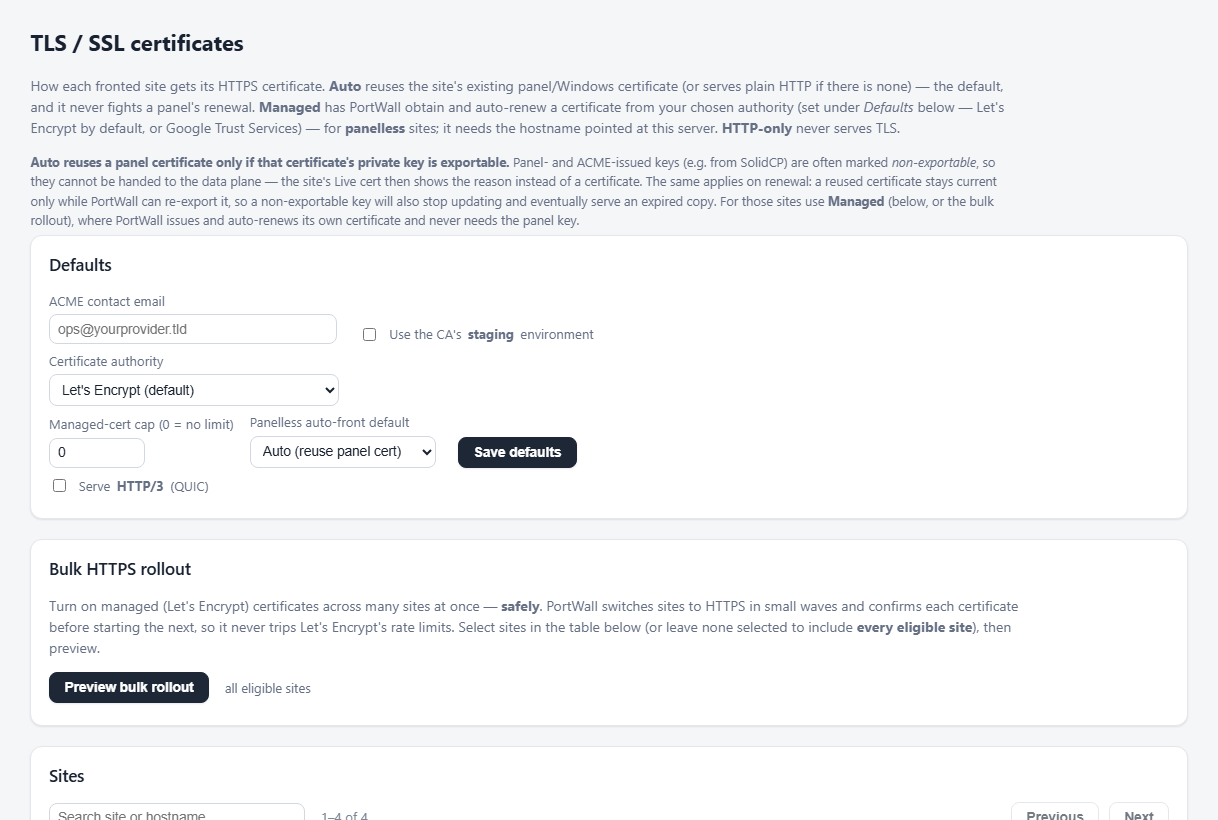
The Defaults section at the top sets platform-wide behaviour so you don't repeat it per site:
- ACME contact email — the address the certificate authority uses for expiry warnings and account notices. Used by any managed site that doesn't set its own. Set this before issuing your first managed certificate.
- Certificate authority — which authority issues your managed certificates. Let's Encrypt (the default) suits almost everyone. Choose Google Trust Services if you need certificates trusted by older devices — for example Android 6 and 7 — that don't trust Let's Encrypt's root (see below).
- Use the CA's staging environment — issues certificates from the chosen authority's staging environment, which has generous rate limits but produces certificates browsers do not trust. Use it to prove issuance works end-to-end, then turn it off and re-save to get real, trusted certificates. A warning is shown while staging is on.
- Managed-cert cap — an upper bound on how many managed certificates PortWall will issue (0 = no limit). A safety valve against runaway issuance.
- Panelless auto-front default — the mode a newly auto-fronted panelless site starts in.
Avoid burning the certificate authority's rate limit. Prove the flow on staging first, and make sure the DNS column shows points here before switching a site to production Managed. A repeatedly failing request against production can exhaust the retry limit for a name for hours.
Using Google Trust Services (older-device trust)
Some old devices — notably Android 6 and 7 — ship with a certificate list that doesn't include Let's Encrypt's root, so sites with a Let's Encrypt certificate show a security warning on them. Google Trust Services issues free certificates that chain to roots those devices already trust, fixing the warning.
Unlike Let's Encrypt, Google Trust Services requires a one-time account credential — an External Account Binding (EAB) — before it will issue. To get one:
- With the Google Cloud CLI, run
gcloud publicca external-account-keys create(in a project with the Public CA API enabled). It prints a key ID and a MAC key. - In Defaults, set Certificate authority to Google Trust Services and paste the EAB key ID and EAB MAC key, then Save defaults.
The MAC key is stored securely and never shown again — leave the field blank when saving later changes to keep the stored one. From then on, every managed certificate (per-site or via the bulk rollout) is issued by Google Trust Services. Prove it on staging first: staging uses its own separate EAB, so create a staging key while the staging toggle is on, then switch to production and create a production key.
Bulk enabling HTTPS across many sites
Switching hundreds of sites to Managed one by one — or all at once — doesn't work: Let's Encrypt limits how fast it will issue, and asking for hundreds of certificates in one go makes it start refusing. The Bulk HTTPS rollout panel does it safely and unattended: it switches sites to managed HTTPS in small waves, confirms each certificate is actually being served before starting the next, and paces itself to stay under the certificate authority's limits.
How to run one:
- In the Sites table, tick the sites you want (or leave everything unticked to include every eligible site).
- Click Preview bulk rollout. PortWall checks DNS for each site and shows you the plan before anything changes.
- Read the preview (see below), then Start rollout. You can close the page — it runs on the server and survives a restart.
What the preview tells you:
- How many sites will get a certificate, how many are held back (their DNS doesn't point here — fixing that and re-running picks them up), and how many are already managed.
- How long it will take. The rollout hands out certificates at a fixed safe pace (by default about 60 per hour), so the preview states plainly, e.g. "enabling all 700 sites takes about 12 hours." Each certificate then takes a few seconds to a minute to actually issue.
- The Let's Encrypt limits it stays under, so you know why it's paced:
- about 300 new certificates every 3 hours per account — the main cap, and the reason for the wave pacing;
- about 50 certificates per domain per week — if one domain has more sites than that, the preview warns you it will finish over several weeks;
- about 5 failed validations per hostname per hour — which is why sites whose DNS doesn't point here are held back rather than attempted.
While it runs, the panel shows a live progress bar, how many are issued / issuing / queued / held / failed, and roughly how much time is left. If Let's Encrypt ever signals a rate limit, the rollout pauses itself and resumes automatically after a cooldown — you don't have to do anything. You can Cancel at any time; sites already switched to HTTPS stay on HTTPS.
Use staging (in Defaults) for a dry run across your sites first if you want to prove the flow without spending production quota — then cancel, switch to production, and run it for real.
Unmatched-host routing (webmail / catch-all)
The default website serves as a catch-all: a request for a hostname that has no dedicated site of its own — webmail.<domain>, autodiscover.<domain>, a shared control panel, phpMyAdmin — can be redirected to one canonical hostname that PortWall serves on :443 with a PortWall-managed certificate and proxies to the origin where that application runs. This means a single certificate covers all the shared services, rather than one per customer. Anything matching no site and no pattern is refused.
To configure it: enable Route hostnames with no dedicated site, set the canonical hostname (e.g. mail.yourprovider.tld), the origin it proxies to, an ACME contact email, and the hostname patterns (one per line, e.g. webmail.*, mail.*, autodiscover.*) that should redirect to it. The canonical hostname must point at this server so its certificate can issue. This is also offered as a step during guided setup — see Set up & cut traffic over to PortWall.
Admin & tenant UI HTTPS
By default the PortWall console and tenant portal are reachable over HTTP on the management network. This section serves them over HTTPS through the WAF engine instead:
- Enter a hostname with public DNS pointing here to get an auto-renewing Let's Encrypt certificate (needs :80 and :443 reachable), or leave it blank for a self-signed internal certificate on the self-signed HTTPS port you choose.
- Restrict to management networks keeps the console reachable only from your management addresses. Leave this on unless you have a specific reason not to — a warning is shown when it's off, because the console would then be reachable from any address the engine accepts.
Troubleshooting
- A managed certificate never arrives — check the DNS column shows points here, confirm :80/:443 reach this server from the internet, and read the certificate log for the exact failure. If you hit a rate limit, switch Defaults → staging on to keep testing.
- Live cert shows a dash on an HTTPS site — the site is in Auto mode with no certificate to reuse; either add a certificate at the panel or switch it to Managed.
- Browsers warn the certificate is untrusted — you are still on Let's Encrypt staging; turn it off in Defaults and re-save.
- An ASP.NET sign-in or form page fails with an error, or the site keeps redirecting to HTTPS — the app wants to see HTTPS itself; turn on Connect to origin over HTTPS for the site (see above).
- A reused (Auto) certificate has expired — PortWall does not renew that certificate; renew it at the control panel and PortWall re-exports it automatically.