
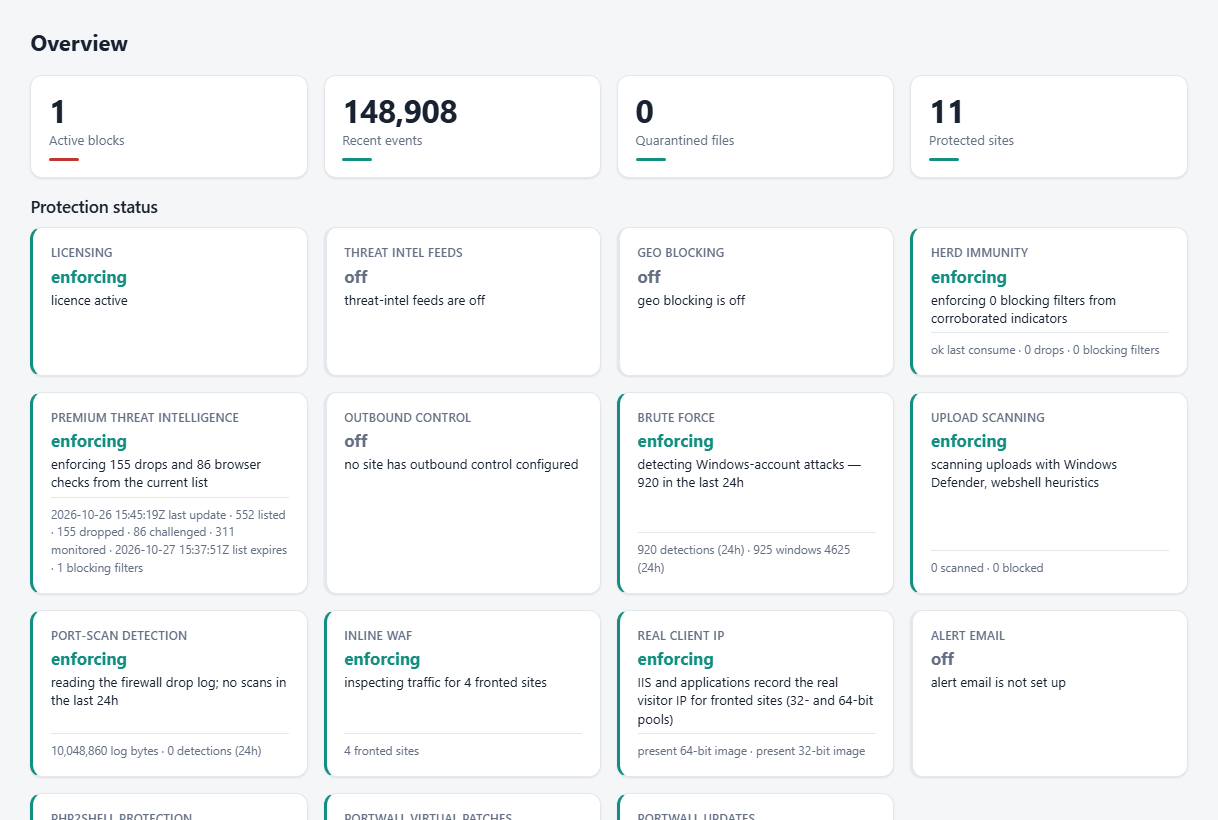
The Overview page shows a row of Protection status cards — one per security feature. Each card answers two different questions:
- Enabled? — did you turn it on?
- Enforcing? — is it actually doing something right now?
The distinction is the point. A feature that reports "enabled" while enforcing nothing is the failure a security product must never hide, so PortWall makes it loud.
What the cards mean
| State | Colour | Meaning |
|---|---|---|
| Enforcing | green | On and proven to be working, with evidence (e.g. "76 firewall rules from 1,711 entries"). |
| Off / not set up | grey | Deliberately disabled. Not a fault — shown so you can see it is off. |
| Degraded | amber | Enforcing, but something is not ideal (e.g. a feed refresh is failing though the last good rules still stand). |
| Not enforcing | red | Enabled but doing nothing — the silent-failure case. Always carries a one-line fix. |
Each card is timestamped ("checked at …"), so green means proven, not merely assumed. The worker re-verifies every couple of minutes, and immediately when you change a related setting.
The top-right errors panel
The badge at the top-right of every page counts current problems (degraded + not-enforcing). Click it for an expandable, scrollable list — pfSense-style — where each entry is actionable and deep-links to the feature's page. When a feature goes back to green, its entry clears automatically.
Where else problems show
A problem appears in three places at once, and they never disagree:
- The Overview card for that feature.
- The top-right errors panel.
- A banner on that feature's own page.
Alerts on a new critical
When a protection newly crosses into "not enforcing", PortWall also raises an alert through your configured channels (see Notifications), so you hear about it even with the console closed. It is edge-triggered — one alert per transition, not a storm.
The features that are checked
Licensing (the headline that explains why enforce-features stand down when it lapses), Threat-intel feeds, Geo-blocking, Herd immunity, Outbound control, Brute-force, Port-scan detection, the inline WAF (fronted-and-serving), Alert email delivery, and PortWall updates — which turns amber when a newer release has been available for more than 30 days and has not been installed, or when an automatic update could not be installed and will not be tried again by itself (see Updates and update channels), and Engine memory.
Engine memory
The WAF engine's memory use goes up and down with traffic, but it should not keep climbing. Engine memory watches it every couple of minutes while the engine runs and turns amber in three cases:
- It grows with every configuration reload. The engine reloads its configuration whenever you change a setting, a certificate renews or a site is added. If, across at least six reloads, the memory it falls back to between bursts of traffic has gone up by more than about 30 MB per reload and 300 MB in all, the card says how much more is in use after each reload.
- It keeps growing with time. After at least 12 hours of watching, the memory it falls back to has gone up by more than half, and by more than 500 MB, over the last day.
- It is far larger than the server's sites need. After at least half an hour of watching, the lowest memory in use over the last hour is above about 400 MB plus 1.5 MB per site. The card shows the number of sites and the most that many sites should need. It usually means something in the configuration is held once for every site instead of once for the server; the setting most likely to cause it is a large geo-blocking policy applied in the WAF or one that lets certificate checks through. Restarting the engine does not help with this one: please report it to PortWall support with the output of
C:\portwall\control-plane\portwall-admin.exe diagnose, which shows the same comparison.
All three look at the lowest memory use, not the peaks, so a busy hour does not set them off, and all three start again whenever the engine restarts. A healthy engine gains about 1 MB per reload. When the card is amber because memory grew, restarting the engine frees the memory (Global WAF Defaults → Advanced → Apply memory limit & restart engine); please also report it to PortWall support, because it means something in the engine is not letting go. Otherwise the card shows how much memory is in use and how much the engine is only holding for reuse; C:\portwall\control-plane\portwall-admin.exe diagnose shows the same two figures. If the engine is not answering, the card waits and says so; the Inline WAF card is the one that reports a stopped engine.