
PortWall is licensed per installation. The Licence page shows your licence state and lets you enter or update your key.
Licence states
| State | What it means |
|---|---|
| Licensed | Everything is active. |
| Grace | The licence couldn't be confirmed recently (for example the server was offline, or its public address or machine changed), but you're inside a grace window of at most 72 hours. Protection is fully intact — this is a heads-up, not a loss of function. |
| Unlicensed | The grace window has ended. Active protection is disarmed, but detection keeps running and every block is preserved — enforcement returns automatically when you re-activate. |
What "disarmed" does and doesn't mean
When unlicensed, PortWall keeps watching and recording attacks; it just stops programming new enforcement. Nothing you configured is lost, and re-activating restores enforcement without reconfiguring anything. The Overview's Licensing card is the headline that explains why the enforce-based features (threat-intel, geo, egress) show as withheld while unlicensed — one clear message rather than a pile of red.
Where to get a key
A licence key comes from PortWall. Buy PortWall in the customer portal at portwall.net/billing. Once the invoice is paid, the key is shown on the licence's page in the portal (Services, then your PortWall licence), with a Copy button. For a quote or a volume order, write to [email protected]. One key covers one installation: one Windows server, or one appliance.
You need the key when you install: the Windows installer asks for it, and the appliance's setup asks for it (or reads it from the instance's user data in the cloud). You can also enter it later on Licence.
Without a key
You can install without one. The Windows installer has an Install without a licence box, and the appliance's setup lets you skip the key step. Without a key:
- The installation starts in the Grace state, and becomes Unlicensed when the grace window (at most 72 hours) ends.
- Once Unlicensed, blocking is disarmed (see below). Attacks are still detected and shown in the attack feed, and nothing you have configured is lost. Adding a key brings enforcement back.
- On the appliance, traffic is inspected on 2 cores until a key says otherwise (see Licensed cores below).
Entering or changing your key
- Go to Licence.
- Paste your key and save.
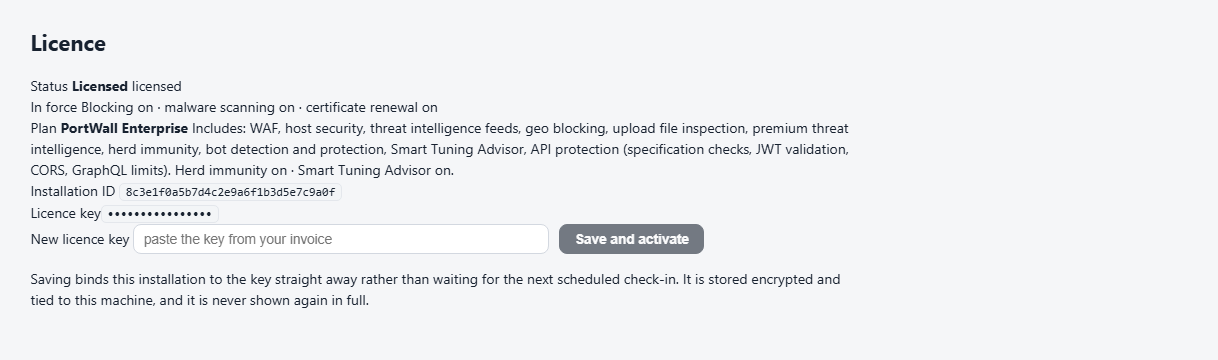
- PortWall binds it immediately (rather than waiting for the next scheduled check-in), so the banner clears within moments if the key is valid.
The page shows your licence Status, what is In force (blocking, malware scanning, certificate renewal), your Plan, the Installation ID and the key, masked. The key is stored encrypted and tied to this machine, and it is never shown again in full. If a key cannot be bound - it is wrong, has expired, or is already in use on another server - the page says so; write to PortWall (see Getting help below) and include the Installation ID.
Linux appliance: licensed cores
An appliance licence covers a number of CPU cores. PortWall inspects traffic on that many of the server's cores and leaves the rest for everything else.
- What counts as a core. On a virtual machine, each virtual CPU (vCPU) is one core. On a physical server, each physical core is one core, together with its hyper-threads.
- Trial. A trial covers 2 cores. So does an appliance that has not yet reached PortWall's licence service.
- A server with more cores than its licence. Everything keeps working as before. PortWall inspects traffic on the licensed cores only. The other cores still run the operating system and the console, but they are not used to inspect traffic. System shows which CPUs inspect traffic and how busy they are, and the Licence page shows how many cores your licence covers.
- A server with fewer cores than its licence. PortWall inspects traffic on all of them. You can add cores, up to the number your licence covers, without changing the licence.
- Extending the licence. When your licence is extended, the appliance picks up the new core count at its next check-in, or straight away if you click check for updates. The change applies within a minute, without a restart and without dropping connections.
- When the licensed cores are busy. If the cores that inspect traffic stay nearly fully busy, the status panel warns that requests may slow down. It also says whether a larger licence would let PortWall use more of the server's cores.
After restoring onto a new machine
A licence key is tied to the machine it was activated on, so a configuration restored onto a different box cannot reuse the old key. Re-enter your key on the new host — the Licence page and C:\portwall\control-plane\portwall-admin.exe diagnose (on Windows) will tell you if the stored key can't be read on this machine.
Moving a key to a new machine is allowed, and you do not need to ask first: enter it on the new machine. The old machine then fails its next check-in, drops into Grace and, when that ends, is disarmed, so a key protects one machine at a time. The number of moves is limited (by default two in 30 days, counting a change of public address too); if you reach the limit, write to PortWall. Reinstalling PortWall on the same server is not a move.
Editions
What you can use depends on your edition. The Licence page names yours and lists what it includes.
| Edition | Includes |
|---|---|
| Windows Standard | WAF, host security, threat-intelligence feeds, geo-blocking, upload file inspection |
| Windows Premium | Standard, plus Premium Threat Intelligence, herd immunity, bot detection and protection, the Smart Tuning Advisor |
| Windows Enterprise | Premium, plus API protection: specification checks, JWT validation, CORS controls and GraphQL limits |
| Appliance Premium | WAF, bot protection, Premium Threat Intelligence, herd immunity, geo-blocking, multi-tenant, plus threat-intelligence feeds, upload file inspection and the Smart Tuning Advisor |
| Appliance Enterprise | Premium, plus API protection |
Per-site allowed methods and route limits on API Protection are in every edition, and so is login brute-force protection. A feature your edition does not include stays visible, says which edition adds it, and keeps whatever you set: it takes effect when the licence includes it.
Getting help
For a licence key, a sales question or help with PortWall, write to [email protected] (sales: [email protected]), or use the contact form at portwall.net. The office is open Sunday to Thursday, 09:00 to 18:00 Gulf Standard Time. Support hours and response times depend on your plan.
To help us help you, send:
- the PortWall version (at the foot of the menu), and which edition you run;
- your Installation ID, from the Licence page;
- what you did, what you expected and what you saw, with screenshots of the Overview and the errors panel;
- on Windows, the report from
C:\portwall\control-plane\portwall-admin.exe diagnose --all --report C:\portwall\diagnose.txt.
If you think you have found a security problem in PortWall itself, write to [email protected] rather than the general address.