
PortWall pages you when something matters — an attack campaign, host tampering, a protection that stopped enforcing — so you don't have to watch the console. This all lives on the Notifications page.
Two layers: what, then where
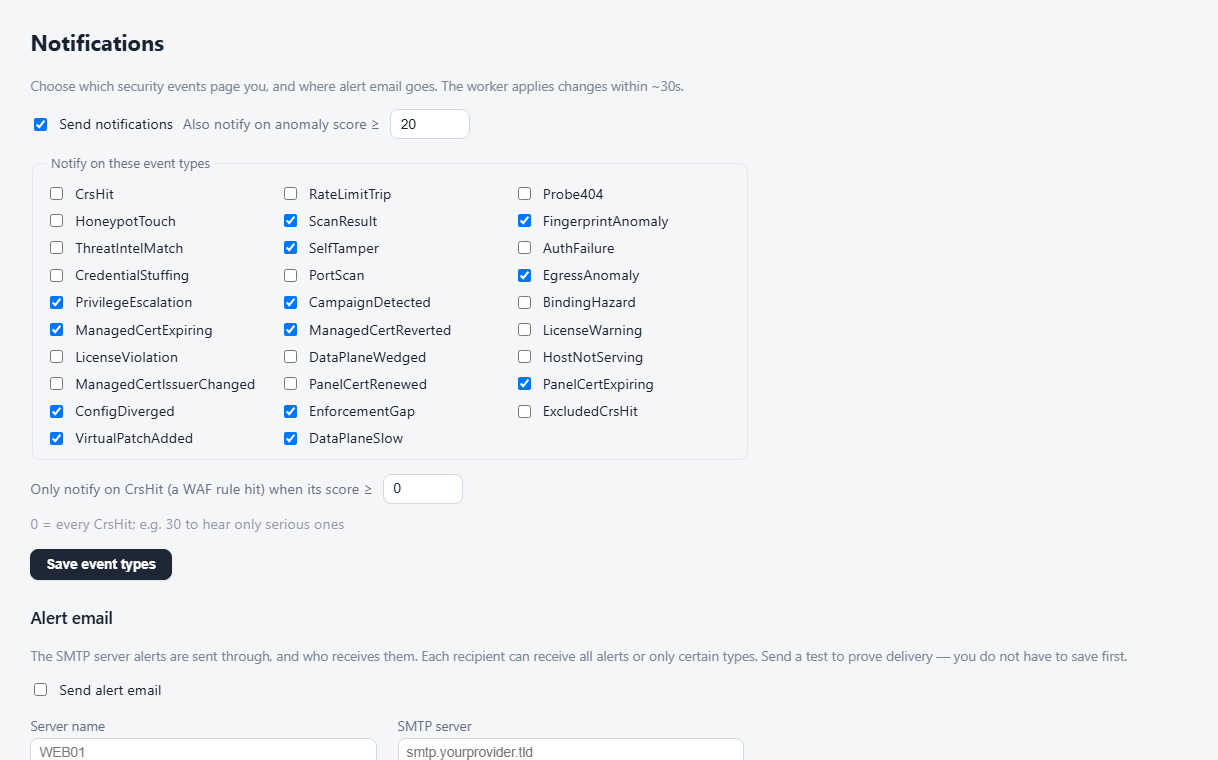
- Notification settings (top of the page) decide what PortWall alerts on at all — the master switch, the event types, and score thresholds.
- Alert email (below) decides where it goes — the SMTP server and the recipients.
Keep the global event-type selection broad and narrow per-recipient; a recipient can't receive a type the global settings exclude.
Choosing what notifies
- Send notifications — the master on/off.
- Notify on these event types — tick the kinds you care about (SelfTamper, CampaignDetected, EnforcementGap, PortScan, EgressAnomaly, licence events, …).
- DataPlaneSlow — the WAF engine is still serving traffic but has been answering PortWall's health check slowly. PortWall does not restart a serving engine; you get one alert per slow spell, as a warning. It is on by default and, unlike the critical alerts, is never sent because of the score threshold: untick it to turn it off.
- Also notify on anomaly score ≥ N — a high-score event of any type pages you even if its type isn't ticked.
- Only notify on CrsHit when its score ≥ N — CrsHit (a single WAF rule hit) is the noisy one. This extra floor lets you keep CrsHit on but only hear about serious hits. Set it to
30for "CrsHit only above 30";0means no extra floor.
Alert email
Fill in the SMTP details, then add recipients.
- Server name — a name for this installation. It goes into every alert's subject and body (e.g.
[PortWall] edge-01: [critical] …), so a recipient watching several servers knows which one it is. Blank uses the machine name. - Recipients — add as many as you like. Each has an address, an on/off toggle, and a per-recipient type filter: leave it "All types" for a duty inbox, or narrow it so (say) a manager only gets campaign/tamper headlines.
Test before you save
Click Send test to try the current form values — you do not have to save first. A blank password reuses the saved one. If the test succeeds, save with confidence; if it fails, SMTP's own reason is shown (a 535 is credentials, a 550 a refused sender), so you can fix it.
If real alerts stop being delivered
A failing alert-email delivery is itself a protection problem: if the saved credentials stop working, the Alert Email card on the Overview goes red, the top-right errors panel shows it, and a banner appears on this page — "alert email is configured but the last send FAILED — alerts are not reaching anyone:
Webhooks
Webhook channels (Slack / Teams / generic) are configured in server config; email is fully console-managed as above.