
PortWall serves your sites by sitting in front of IIS: it takes the public web ports (80/443), inspects traffic, and forwards clean requests to IIS on a private origin address. Getting there is the job of the Set up PortWall wizard.
Before you start
- PortWall must be installed with its loopback origin adapter, which the installer's window offers (ticked by default). PortWall reaches IIS through it, on a private address that cannot be reached from outside. If it was left out, run
C:\portwall\deploy\services\Install-PortWallServices.ps1 -InstallLoopbackAdapter -Confirm:$falseon the server, in an elevated PowerShell. See Getting started. - On a single-address host this is normal and fully supported — you do not need a second IP.
- Your sites need host-named IIS bindings. PortWall routes by hostname, so a site with no hostname (such as the Default Web Site) cannot be put behind it.
- Pick a quiet time for the last step. Your sites carry on as before until then, and you can stop after any earlier step.
- New sites default to DetectionOnly (they are inspected and logged, but nothing is blocked) until you promote them. See Sites & the WAF.
The wizard, step by step
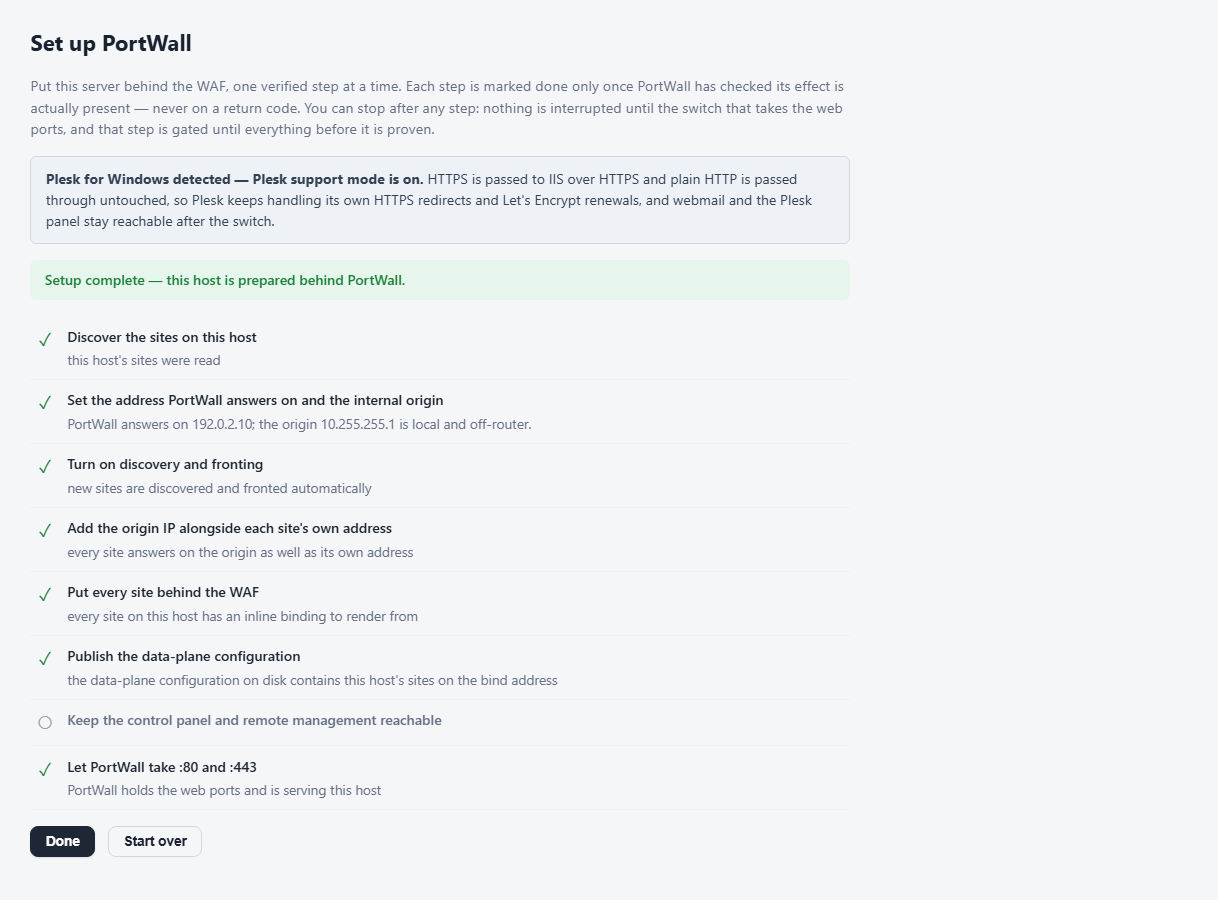
Open Set up PortWall. It lists its steps, runs them in order when you press Continue setup, and marks each one done only after it has checked that the change is really in place. You can stop after any step and come back; nothing is interrupted until the last one.
- Discover the sites on this host — reads your IIS sites.
- Set the address PortWall answers on and the internal origin — fills in the address your server answers on and the private origin address, and brings the origin up. Behind NAT, the address to use is the server's private address, not the public one. If PortWall cannot tell which address is yours, it stops and tells you to set it under Settings → Network.
- Turn on discovery and fronting — from now on, new IIS sites are found and put behind PortWall automatically.
- Add the origin IP alongside each site's own address — gives every site an extra binding on the origin, without touching the binding it already has, so no site goes dark.
- Put every site behind the WAF — creates PortWall's entry for each host-named site.
- Keep webmail and shared apps reachable — see below. This step does not appear on a Plesk server.
- Publish the data-plane configuration — writes the configuration PortWall will serve.
- Keep the control panel and remote management reachable — see Management ports below.
- Let PortWall take :80 and :443 — the cutover itself.
A step shows one of these states: done, failed (with what to fix), blocked (waiting for you), waiting for a reboot, or skipped. The button changes to match: Recheck & continue when a step is waiting for you, Retry & continue after a failure, Resume (after reboot) when a restart is needed. Start over begins again from the first step; Done appears when everything is verified.
Webmail and shared apps
Before PortWall, the IIS Default Web Site answered every hostname that had no site of its own: webmail, autodiscover, and shared scripts such as a control panel or phpMyAdmin, for every domain on the server. PortWall routes by hostname, so after the cutover a hostname it has no site for reaches nothing. The wizard therefore stops at this step until you decide:
- Give the shared apps a hostname (for example
webmail.yourdomain.com). PortWall serves it on port 443 with a managed certificate and forwards it to where the apps run. The hostname must already have a DNS A record pointing to this server; PortWall checks that before it asks for the certificate. You can add an email address for certificate-expiry notices. - Or confirm that this host has none with This host has none — skip.
You can change this later under TLS / SSL.
The cutover
Taking the public web ports is the moment traffic starts flowing through PortWall. PortWall does this carefully:
- It verifies the prerequisites first (a preflight gate). Until they pass, the step is blocked and tells you what to fix.
- It keeps a way back: the IIS bindings are never removed, so a site still has the bindings and certificates it had before.
- If the cutover does not verify that PortWall is serving, it is undone and the server is returned to IIS.
Important — the reboot gap. Windows sometimes does not actually release or restore the web-port reservation until the machine is rebooted. If a cutover or a revert reports success but sites are dark, reboot the server — this is a known Windows behaviour, not a PortWall fault, and PortWall will tell you a reboot is required.
Management ports (control panels)
When PortWall takes the server's address, every other web service in IIS moves off that address too, not only the websites: a control panel such as SolidCP (9001, 9002, 9003), its server agent, Web Deploy. Management Ports (under Network) lists the ports PortWall keeps answering on the public address. PortWall listens on each one and passes every request, unchanged, to the service on the server. The WAF is not applied to these ports.
- Add a port by number, or pick it from Other ports your IIS sites use, which PortWall reads from IIS.
- Allowed from limits who can reach a port to the addresses or ranges you list; everyone else is refused. Leave it empty to let anyone reach it, as before PortWall.
- Status checks each port live: whether PortWall answers on the public address, whether the service behind it answers, and whether Windows Firewall lets the port in from outside.
- PortWall refuses a port it cannot take: 80 and 443 (your websites), its own console port, Windows remote management (WinRM, whose sign-in cannot be passed through), a port another program already uses, and a port IIS serves only over HTTPS.
- On a Plesk server, the Plesk panel's ports are kept reachable by PortWall itself and cannot be changed here.
Plesk for Windows
If PortWall finds Plesk on the server, the wizard says so at the top (Plesk for Windows detected — Plesk support mode is on) and PortWall changes how it behaves so that Plesk keeps working:
- HTTPS requests are passed to IIS over HTTPS, and plain HTTP is passed through untouched. Plesk keeps handling its own redirects to HTTPS and its Let's Encrypt renewals.
- Each hostname goes to the IIS site that owns it, so webmail keeps working. That is why the Keep webmail and shared apps reachable step is left out.
- The Plesk panel's ports (8443 and 8880) are kept reachable by PortWall itself.
- The installer keeps PortWall's private origin address out of Plesk's pool of IP addresses.
Plesk runs its own web application firewall inside IIS. With PortWall in front, every request would be inspected twice, and Plesk's blocks do not appear in PortWall's attack feed. When Plesk's firewall is on, the setup page, Sites and Global WAF Defaults show a warning with a Turn off Plesk's firewall button. You can turn it back on from the same place or in Plesk.
On a SolidCP server, the panel's ports (9001, 9002, 9003) are the Management ports described above.
Returning traffic to IIS (revert)
To hand serving back to IIS, use Return traffic to IIS — requires a reboot under Step back to IIS on the Sites page. PortWall stops fronting your sites, disables itself so it will not fight IIS at the next boot, and restores the web-port reservation (the http.sys listen list). Every site keeps the bindings and certificates it has now. The listen list only takes effect after a reboot, so reboot the server; PortWall tells you when it is needed. Detection history and all blocks are preserved.
If a setup or cutover is stuck "in progress" and the button is refused, tick Override a stuck cut-over (force) and press it again.
To remove PortWall altogether, see Uninstalling PortWall (Windows).
Verifying it worked
- The Overview should show your sites fronted and the inline-WAF card green ("inspecting traffic for N fronted sites").
- On the box,
C:\portwall\control-plane\portwall-admin.exe diagnoseexplains anything wrong in plain English and needs no API key — see the command-line reference.