
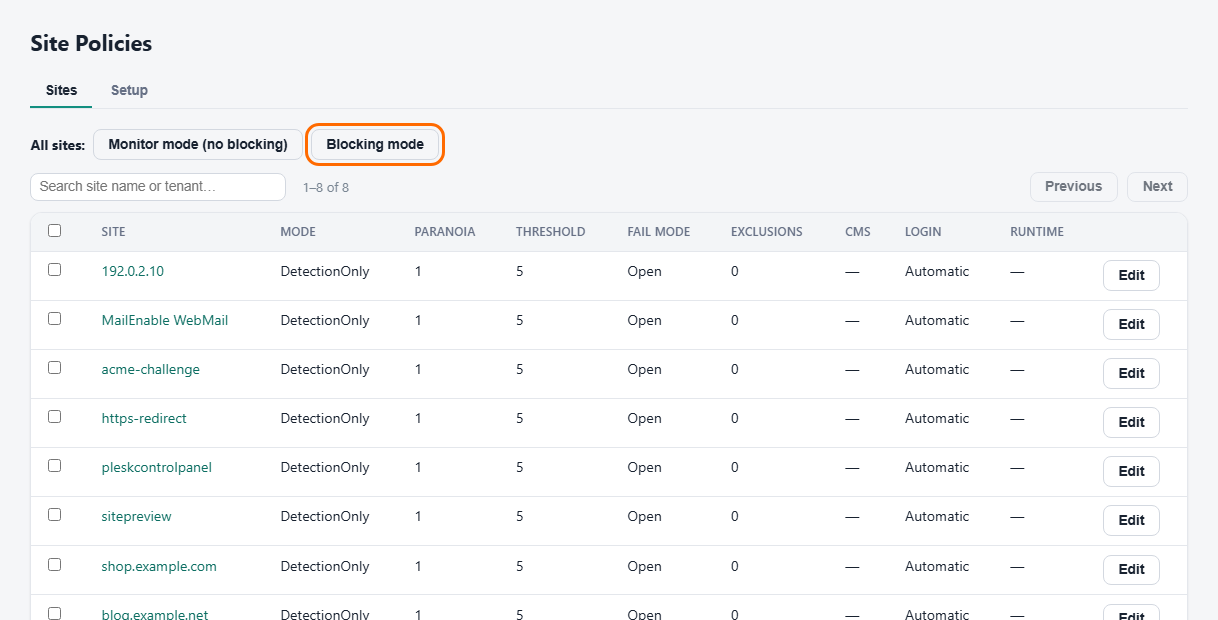
The Sites page lists every site PortWall knows about and how it is protected. This is where you move a site from watching to blocking, and where you tune away false positives so blocking is safe.
Engine modes
Each site has a WAF engine mode:
| Mode | What it does |
|---|---|
| DetectionOnly | Inspects and logs attacks, but blocks nothing. The safe default for a new site. |
| On (blocking) | Inspects and blocks requests that trip the rules. |
| Off | No inspection. |
New sites start in DetectionOnly on purpose: turning on blocking without checking for false positives can break legitimate requests.
Paranoia level
Higher paranoia = stricter rules = more attacks caught, but more chance of false positives. Start at the default; raise it for sensitive sites once you've tuned exclusions.
Fail mode
Sometimes PortWall cannot fully inspect a request. Each site's fail mode says what happens then:
| Fail mode | When a request cannot be fully inspected |
|---|---|
| Open (default) | It goes through to the site. The site stays usable whatever happens. |
| Closed | It is refused. Nothing reaches the site unchecked. |
Two things count as "cannot be fully inspected":
- A request body larger than the WAF inspection limit (2 MB unless changed in Global WAF Defaults → Advanced). With Open, PortWall inspects the first part and passes the rest. With Closed, the request is refused with 413. If the site takes larger uploads, raise the inspection limit before you choose Closed.
- An upload the scanner could not check: the scanner is not running, it timed out, or the file is larger than it scans (25 MB). With Open, the upload goes through. With Closed, it is refused with 403, and the Attack Feed says the upload could not be checked.
Fail mode refuses requests only while the site is in On (blocking) mode; in DetectionOnly nothing is refused. It changes nothing else: an attack is blocked in either fail mode, and a busy server never lets a request through uninspected, whatever the fail mode, because that would let an attacker flood the server to slip a payload past the WAF.
Choose Closed for a site where an unchecked upload or form would be worse than a refused one, such as an admin area that accepts files. Keep Open where availability matters most.
Until 1.2.45 fail mode had no effect, so that update set every site to Open. Set Closed again on any site where you want it.
Tuning: fixing false positives
A WAF is only useful once it blocks without breaking your customers. When a legitimate request is caught, add a rule exclusion so that specific rule no longer fires for that site (optionally scoped to a path or parameter):
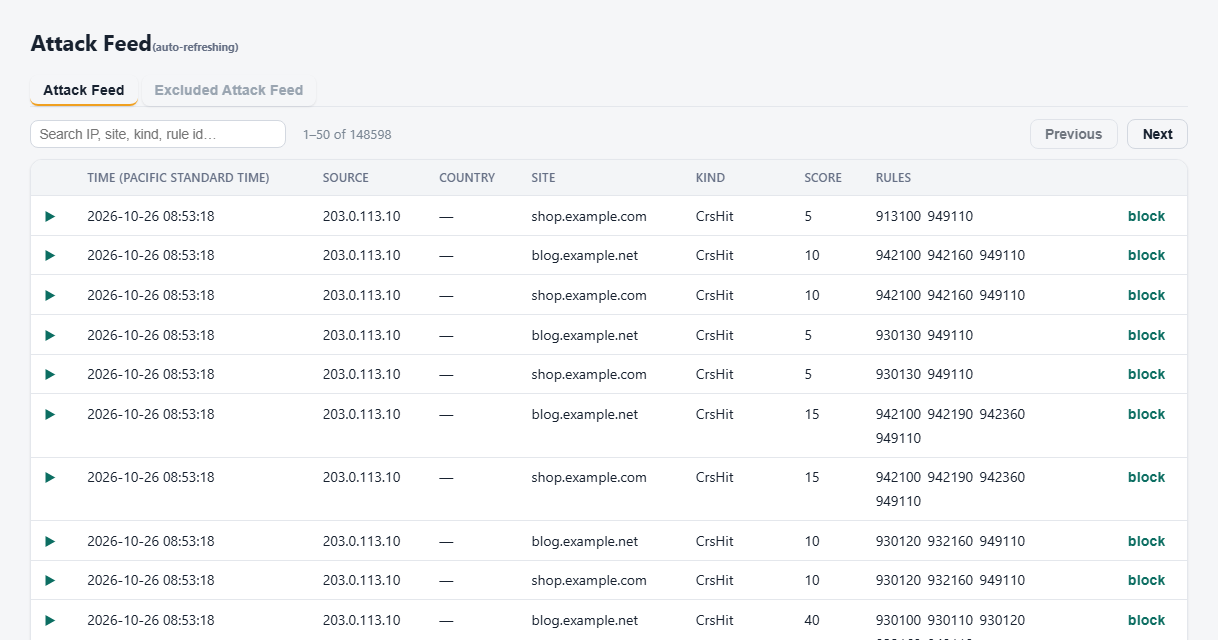
- Find the blocked request in the Attack Feed (note the rule id).
- On the site's tuning, add an exclusion for that rule id (and route/param if you want to keep the rule elsewhere).
- The exclusion applies to that site only — the rule stays active everywhere else.
PortWall's tuning analyser reads a site's recent events and suggests which rules are noisy, so you're not guessing.
A safe path to blocking
- Leave a new site in DetectionOnly for a few days of real traffic.
- Review what would have been blocked (the Attack Feed / tuning suggestions).
- Add exclusions for the false positives.
- Switch the site to On.
Virtual patches
For a specific emerging threat you can add a virtual patch - a targeted rule for one site - and run it in shadow (detection) before promoting it to blocking, with an optional auto-expiry. They are on the Virtual Patches page, together with the patches PortWall adds for current CVEs. See Virtual patches.
Rate limiting & bots
- Rate limiting — per-site / per-path request throttles protect against floods and scrapers.
- Verified bots — good bots (Googlebot, Bingbot, …) are verified by reverse-DNS and allowed; abusive clients can be throttled by JA4 fingerprint.
Multi-tenant self-service
If you delegate sites to tenants, the Self-Service Policy (Tenants) controls what a tenant may change on their own sites (allowed modes, exclusion limits, rate-limit floor), with your settings as the ceiling.